 Getting Started / Walkthrough
Walkthrough Guide
We are going to create a very basic video using DoraBot to show you how to use the chat interface and create a very basic workflow.
We will create a video with an animated "Hello World" text in the center and a background music.
To start, click on the the left menu and choose 'Create New'. This will create a new conversation with DoraBot. You can then type in your instructions to DoraBot in the chat box at the bottom.
Here's an example of what you can type in to create the video we described:
Create a single video of the word "Hello world" where each individual letter is bouncing up and down off the bottom of the video independently. Each letter should have a different color. Include some stock background music that is upbeat and happy. Make the video about 30 seconds long.
Once you have typed in the instructions, hit enter and DoraBot will start processing your request. You will see the workflow being created in real time as DoraBot creates the nodes and connects them together to create the video.
Once the request is completed, you will see some response from DoraBot . For example, you might see something like this below -
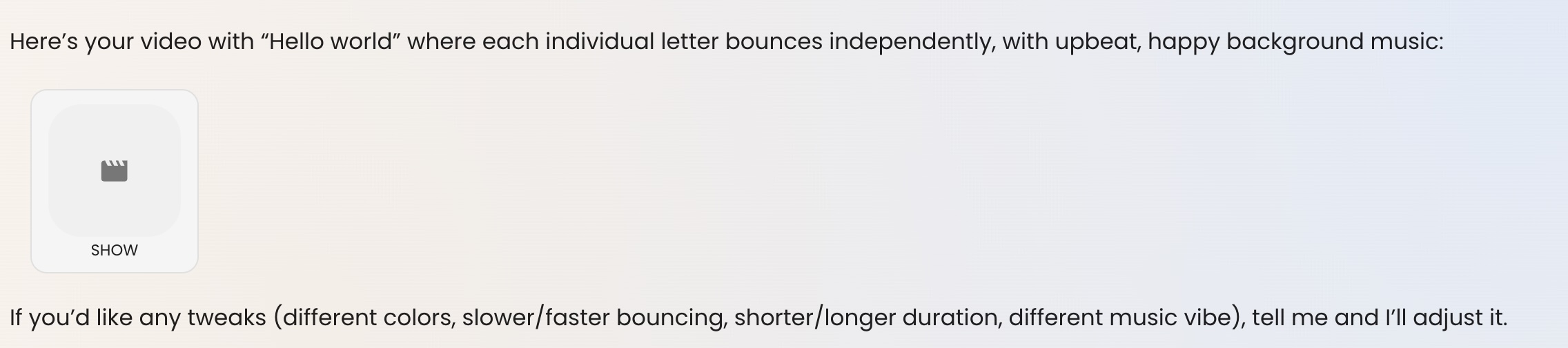
Within the response, you should see a link to the workflow that was generated with the word "SHOW" below. Click on the SHOW to see the workflow that DoraBot created to generate the video.
If you have not changed your preferences, you should see that your workflow is already automatically generating.
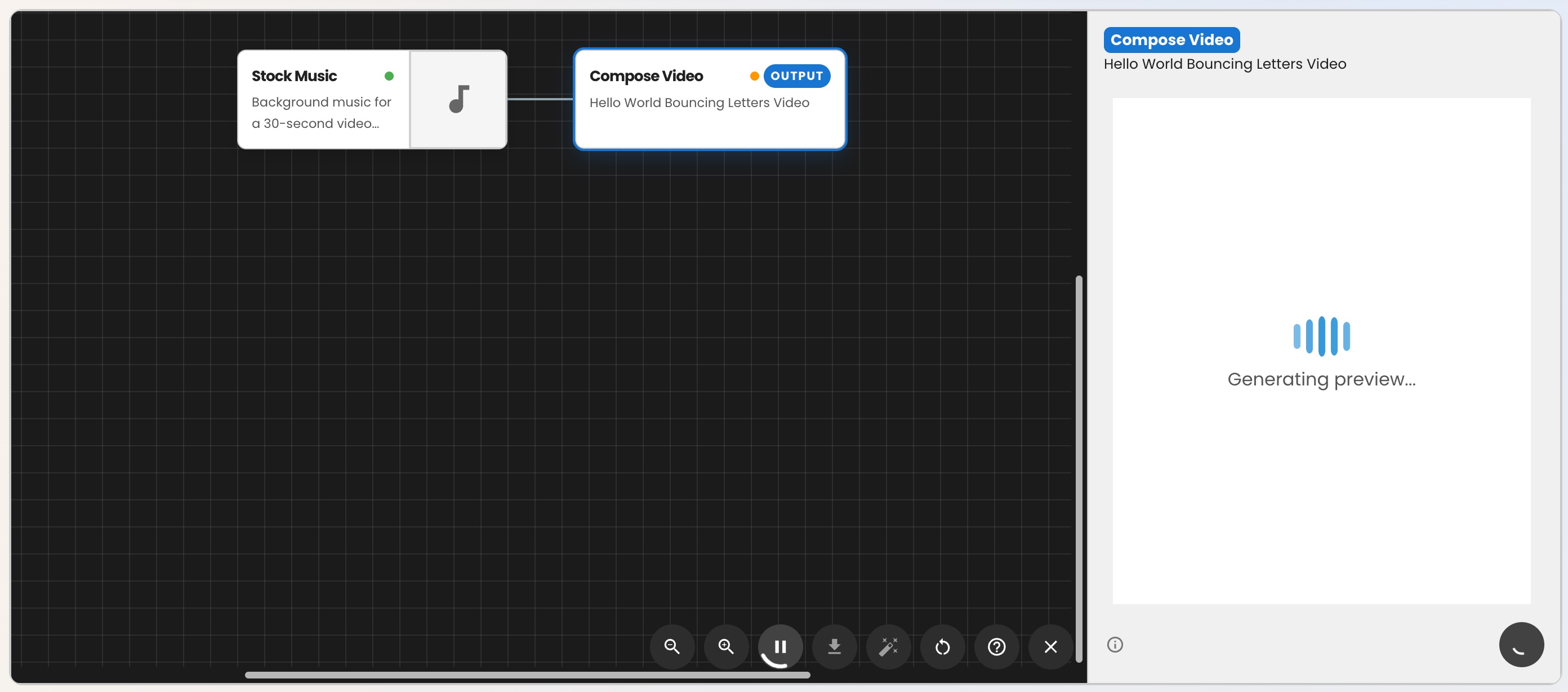
You can click on the nodes to see the inputs and outputs of each node. The final node that produces the video should have a label "OUTPUT" on that node. If you click on that node, you should be able to see a preview of the video being generated. If the preview is still generating, you will see a live preview while the video is generating. Once the video is done generating, you can click on the download button to download the video.
Below is an example video that was generated using the instructions above. You can see that the video has the animated "Hello World" text in the center with each letter bouncing up and down independently and each letter has a different color. The video also has some upbeat and happy background music.
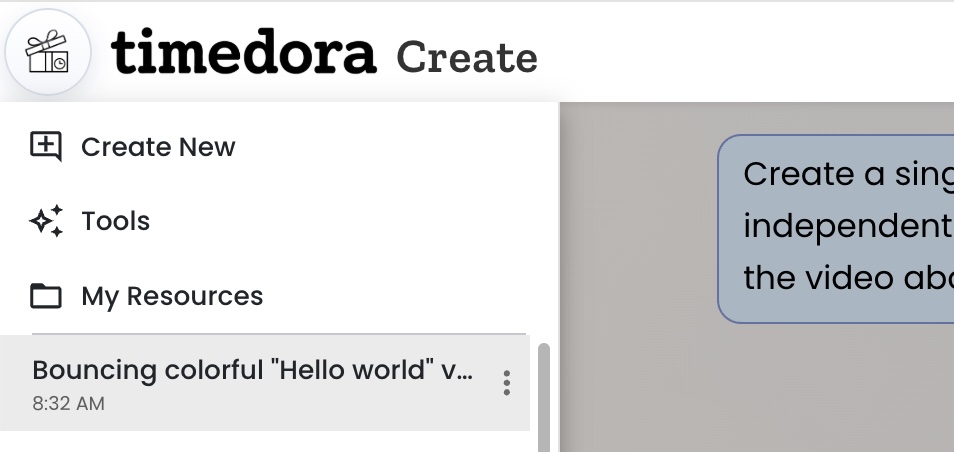
You can come back to the conversation any time by use the left menu bar. Timedora will automatically summarize the conversation and you can select it to see the conversation with DoraBot again.
What if I am not happy with the results?
You have two different options.
You can continue the conversation with DoraBot by giving it more instructions. For example, you can say "can you make the text bigger and make the background music louder". This will create a new version of the workflow with those changes and you can compare the two versions of the workflow and the generated videos to see which one you like better.
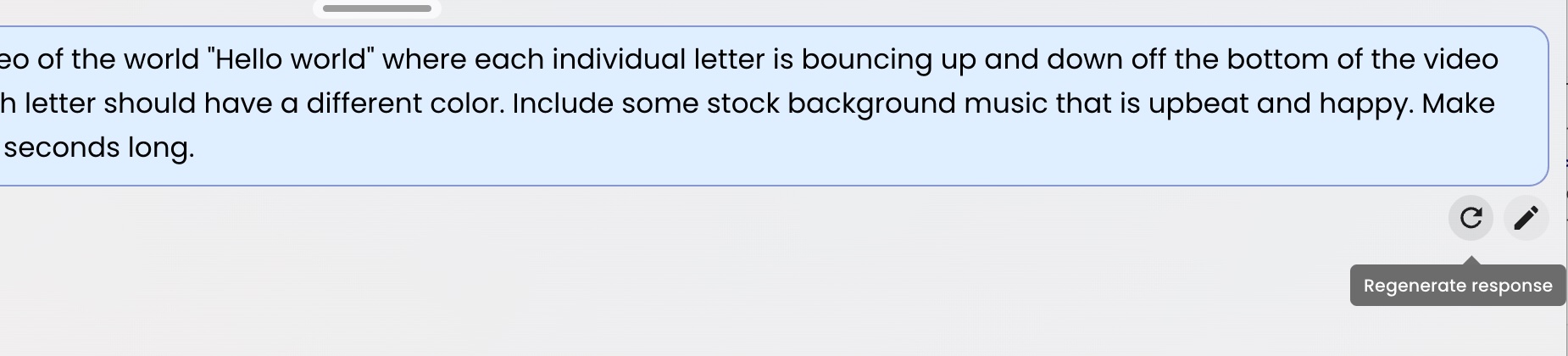
You can also click on the "Regenerate Response" button to have DoraBot try again with the same instructions. This will create a new version of the workflow with the same instructions and you can compare the two versions of the workflow and the generated videos to see which one you like better.
Here's an example of a different result after regenerating the response with the same instructions. You can see that the video is different from the previous one but it still has the animated "Hello World" text in the center with each letter bouncing up and down independently and each letter has a different color. The background music is also different but it is still upbeat and happy.
After regenerating, you might also notice that there is a new version selector at the top of the conversation
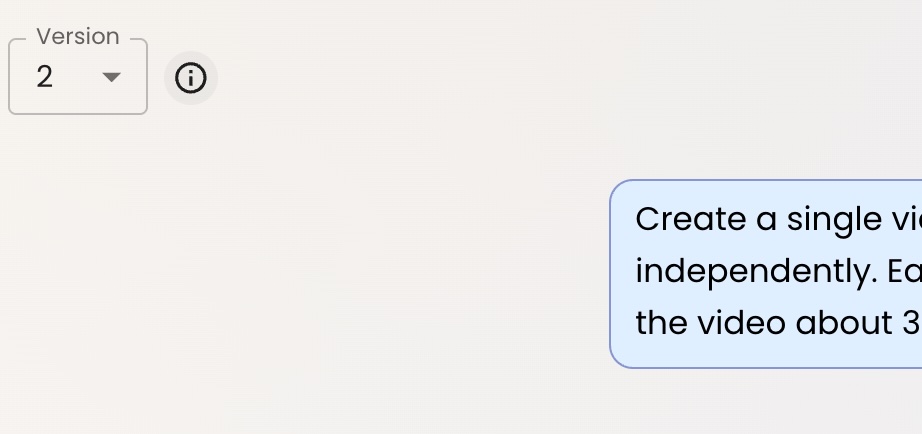
You can use this version selector to switch between different versions of the conversation and the workflows that were generated from those conversations. This allows you to easily compare the different versions and see which one you like better. You can also use this version selector to switch back to a previous version if you liked that version better than the current version. You can have up to 64 versions of the conversation and workflows so you can experiment with different instructions and see the different results you get from those instructions.
We respect your privacy
By continuing to use this website, you agree to cookie usage for analytics and marketing. You can accept all, reject all, or manage preferences.